Getting started
Agent Image is one app for iPhone, iPhone Duo, iPad and Mac. Add photos to the queue, choose what you want to do with them, and export. Everything runs on your device.
Adding photos on Mac
- Drag files or whole folders onto the window, or use the Open panel.
- Manage the queue from the keyboard. Click, Command-click and Shift-click to select, Command-A to select all, Delete to remove, and click empty space to deselect.
Adding photos on iPhone and iPad
- Import from Photos or Files.
- From another app, use “Copy to Agent Image” to send a photo straight to the queue.
Layouts
iPhone uses a stacked layout. iPad uses two columns and works with Split View, Slide Over and Stage Manager. Mac uses a sidebar and queue. Help is also built into the app, with pages for File Formats, AI Tools, Icon Studio and Tools.
iPhone Duo
- Unfolded: the inner screen shows the queue beside the selected image’s details or the batch.
- Half-folded in landscape: the layout splits at the fold, with the tool or image on the left and the queue on the right. Batch Setup, Convert and AI Studio open on the tool side.
- Folded: the outer screen has the full app and every tool.
- At the largest text sizes, the inner screen uses one wide column so labels aren’t cut off.
File formats: the complete list
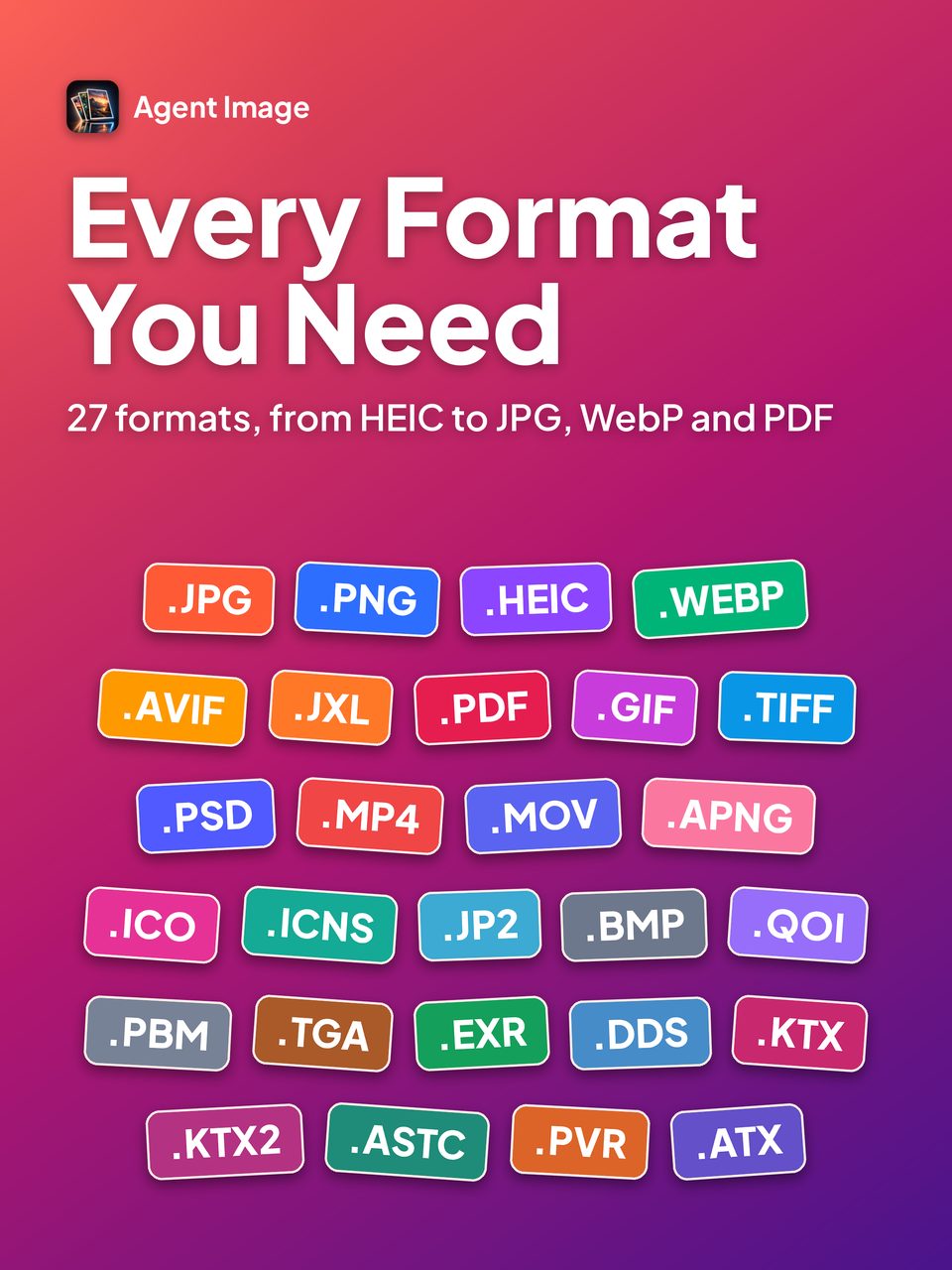
The full list of what Agent Image 1.0.2 can open and save. It saves to 27 formats, including MP4 and QuickTime video, plus .iconset folders on Mac. It opens 33 formats plus Camera RAW from 16 camera makers. The export menu hides any format your device can’t write.
Swipe the table sideways to see every column.
| Group | Format | File extensions | Open | Save | Options and notes |
|---|---|---|---|---|---|
| Everyday | JPEG | .jpg, .jpeg, .jpe, .jfif | Yes | Yes | Quality, progressive, embedded thumbnail, keep HDR gain map |
| Everyday | PNG | .png | Yes | Yes | Interlaced |
| Everyday | Animated PNG | .png, .apng | Yes | Yes | Keep animation, combine images, frame time, loop |
| Everyday | HEIC / HEIF | .heic, .heif, .hif | Yes | Yes | Saves as .heic. Quality, lossless, keep HDR |
| Everyday | GIF | .gif | Yes | Yes | Still or animated. Keep animation, combine images, frame time, loop |
| Everyday | HEICS (animated HEIC) | .heics | Yes | No | Open only. Apple’s HEICS writer makes files its own player rejects, so it isn’t offered for export |
| Web | AVIF | .avif | Yes | Yes | Quality, lossless |
| Web | WebP | .webp | Yes | Yes | Still or animated. Quality, lossless, keep animation, combine images |
| Web | JPEG XL | .jxl | Yes | Yes | Quality, lossless, effort 1–9 |
| Web | SVG | .svg | Yes | No | Open only. Opened as a transparent PNG working copy |
| Professional & Print | TIFF | .tif, .tiff | Yes | Yes | Compression: none, LZW or PackBits. Multi-page TIFF |
| Professional & Print | JPEG 2000 | .jp2, .j2k, .jpf, .jpx | Yes | Yes | Saves as .jp2. Quality, lossless |
| Professional & Print | PSD (Photoshop) | .psd | Yes | Yes | — |
| Professional & Print | BMP | .bmp, .dib | Yes | Yes | — |
| Professional & Print | QOI | .qoi | Yes | Yes | Lossless |
| Professional & Print | Netpbm | .pbm, .pgm, .ppm, .pnm | Yes | Yes | Saves as .pbm |
| Professional & Print | PICT | .pict, .pct, .pic | Yes | No | Open only |
| Professional & Print | SGI | .sgi, .rgb, .rgba, .bw | Yes | No | Open only |
| Professional & Print | MPO (3D photos) | .mpo | Yes | No | Open only |
| Professional & Print | DICOM | .dcm, .dicom | Yes | No | Open only |
| Documents | Yes | Yes | Each page opens as its own item, or only the first page (Settings › Importing). Saves with page size, orientation, margins, placement, page colour, compression, combine into one PDF, searchable text | ||
| Icons | ICO | .ico | Yes | Yes | Icon sizes, shape, fit, padding, background, shadow |
| Icons | ICNS | .icns | Yes | Yes | Icon sizes, shape, fit, padding, background, shadow |
| Icons | Icon set | .iconset folder | No | Yes | Save only, on Mac, from the ICNS options |
| Icons | Cursor | .cur | Yes | No | Open only |
| Games, 3D & VFX | OpenEXR | .exr | Yes | Yes | — |
| Games, 3D & VFX | TGA | .tga | Yes | Yes | — |
| Games, 3D & VFX | DDS | .dds | Yes | Yes | Uncompressed 32-bit |
| Games, 3D & VFX | KTX | .ktx | Yes | Yes | — |
| Games, 3D & VFX | KTX2 | .ktx2 | Yes | Yes | — |
| Games, 3D & VFX | ASTC | .astc | Yes | Yes | — |
| Games, 3D & VFX | PVR | .pvr | Yes | Yes | Square, power-of-two sizes |
| Games, 3D & VFX | ATX | .atx | Yes | Yes | — |
| Games, 3D & VFX | Radiance HDR | .hdr | Yes | No | Open only |
| Video | MP4 | .mp4 | No | Yes | Save only. An animation becomes a video and several images become a slideshow. H.264 or HEVC, frame time |
| Video | QuickTime | .mov | No | Yes | Save only. An animation becomes a video and several images become a slideshow. H.264 or HEVC, frame time |
Camera RAW (open only)
| Camera maker | File extensions | Open | Save |
|---|---|---|---|
| Adobe DNG (any camera) | .dng | Yes | No |
| Canon | .cr2, .cr3, .crw | Yes | No |
| Nikon | .nef, .nrw | Yes | No |
| Sony | .arw, .srf, .sr2 | Yes | No |
| Fujifilm | .raf | Yes | No |
| Olympus / OM System | .orf | Yes | No |
| Panasonic | .rw2, .raw | Yes | No |
| Pentax | .pef, .ptx | Yes | No |
| Samsung | .srw | Yes | No |
| Leica | .rwl, .dng | Yes | No |
| Hasselblad | .3fr, .fff | Yes | No |
| Phase One | .iiq | Yes | No |
| Leaf | .mos | Yes | No |
| Konica Minolta | .mrw | Yes | No |
| Epson | .erf | Yes | No |
| Kodak | .dcr, .kdc | Yes | No |
Camera RAW files open through Apple’s built-in RAW engine, so which camera models are supported depends on your iOS, iPadOS or macOS version. Save RAW files to any of the formats above.
Options for every format you save
Colour space, 8-bit or 16-bit where the format allows, DPI and transparency fill. Agent Image shows an estimated file size, and you can set a target size in KB or MB.
Sidecars, reports and packaging
Save XMP sidecars or JSON metadata sidecars alongside your photos, create a CSV metadata report, and package an export as a ZIP file. Tools › Import Metadata from CSV applies metadata from a spreadsheet.
Not supported: JPEG XR.
Batch conversion
- The queue holds a single image, many images, or whole folders.
- Batch Setup lets you choose the format, size and file naming once for the whole batch.
- Use per-file overrides when one photo needs different settings.
- Resize by pixels, by percentage, or by the longest edge.
- If a file fails, it’s reported with its error, so nothing fails silently.
Saving your files
On iPhone and iPad, the Convert sheet saves to Photos or Files, or shares in one step. On Mac, choose a folder when you export. You can also add an XMP or JSON sidecar for each file, a CSV report for the batch, or a ZIP of the whole export.
Editing EXIF, GPS and IPTC metadata
- Edit the title, caption, keywords, rating, favourite, copyright, creator and credit.
- Set the date taken with its time zone, use Set to Now, or Clear Date.
- Edit camera details.
Location
- Search for a place, drop a pin on the map, use your current location (an optional, one-time fix), or remove the location.
- Agent Image shows the place name for GPS coordinates. If it can’t look a place up, it tells you why.
Reviewing and applying changes
- Review Changes shows a before-and-after comparison of the metadata.
- Edits apply to the exported copies only, unless you choose otherwise.
Stripping metadata
Remove everything, or remove only location, camera or personal details.
Presets
Built-in presets: Web-Safe Export, Client Delivery, Archive Master, Private Sharing, Camera Info Scrub, Author Scrub, Timestamp Scrub, Caption Reset, Social Media Ready, Real Estate Listing, Privacy-Safe Handoff and Deep Privacy Scrub.
- Save your own export settings as a preset.
- Turn on Sync Across Devices in Settings to sync your settings, metadata presets, export presets and batch-rename rules through your own iCloud. The default export folder stays on each device, and with the switch off nothing syncs.
- Deleting a preset asks you to confirm, and presets that remove data warn you clearly first.
AI Studio and AI tools
All AI tools run on your device.
- Remove background: cut out the subject, then optionally crop to the subject and fill the background with a colour. This uses Apple’s built-in subject detection.
- Auto Enhance, with a strength slider.
- Straighten horizon.
- Fix red-eye.
- Reduce noise and sharpen, each with a slider.
- Upscale 2× or 4× (standard upscaling). For sharper enlargements, use AI Upscale, new in 1.1.
Opening AI Studio
AI Studio shows a before-and-after preview with a compare slider. On Mac, press ⇧⌘A. On iPhone and iPad, open it from the More menu or the image menu.
AI object eraser
In AI Studio, paint over an unwanted object and it’s filled in from the surroundings.
Adding your watermark
- Use typed text (font, bold, colour, size and shadow) or your own logo or image.
- Place it in one of 9 positions, or tile it across the photo.
- Adjust the opacity, margin, rotation and spacing, with a live preview.
- It works for a single export or a whole batch.
Smart crop for social
- Choose from 14 presets, including Instagram square, portrait and story, TikTok, YouTube thumbnail, X, Facebook, LinkedIn and Pinterest.
- Or use a standard ratio or a custom size.
- Apple’s on-device subject and face detection keeps the important part of the photo in frame.
Photos to PDF
- Combine photos into one PDF, or save one PDF per photo.
- Set the page size, orientation, margin, placement, page colour and compression.
- An invisible text layer makes your PDFs searchable. It’s on by default.
Extracting text
- Recognise text in one photo or many.
- Edit the text, copy it, or save it as a text file.
- On Mac, press ⇧⌘T.
Finding duplicates
- Agent Image finds exact copies, near duplicates and similar shots, using a file fingerprint, a perceptual hash and Apple’s image feature prints.
- It keeps the highest-resolution or sharpest copy and removes the rest from the queue. On Mac, it can also move them to the Bin.
- On Mac, press ⇧⌘D.
Batch rename
- Build names from tokens: name, number, date taken, time, size, camera, city and extension.
- Use find and replace, letter case and space options.
- Name conflicts are detected before you export.
- Rename the exported files, or on Mac, rename the original files.
- On Mac, press ⇧⌘R.
Making app icons
Icon Studio on Mac
- Make .icns, .iconset, .ico or PNG icons in the macOS icon shape.
- Copy the icon off any folder, app or file.
- Apply an icon to a folder, or remove a custom one.
- Press ⇧⌘K to open it.
iPhone and iPad
Make icon size kits, and tap the size chips to choose which sizes to include.
Privacy report
- See what’s in your queue: GPS locations, names and camera details.
- Remove the location from everything in one tap.
- See on-device activity counts: images opened and exported, locations removed, AI edits, text extraction and watermarks.
- It confirms that no photos have been uploaded.
Agent Image never uploads your photos. It only goes online for map tiles and place names, and for iCloud sync if you turn it on. The Mac app is sandboxed for the App Store and asks before opening your folders.
Tools menu and shortcuts
On Mac, the Tools menu has these shortcuts. On iPhone and iPad, the same tools are in the More menu.
- AI Studio ⇧⌘A
- Extract Text ⇧⌘T
- Batch Rename ⇧⌘R
- Find Duplicates ⇧⌘D
- Icon Studio ⇧⌘K
AI Upscale New in 1.1
AI Upscale enlarges photos up to 16× and adds real detail with an on-device super-resolution model, so they stay sharp instead of going soft.
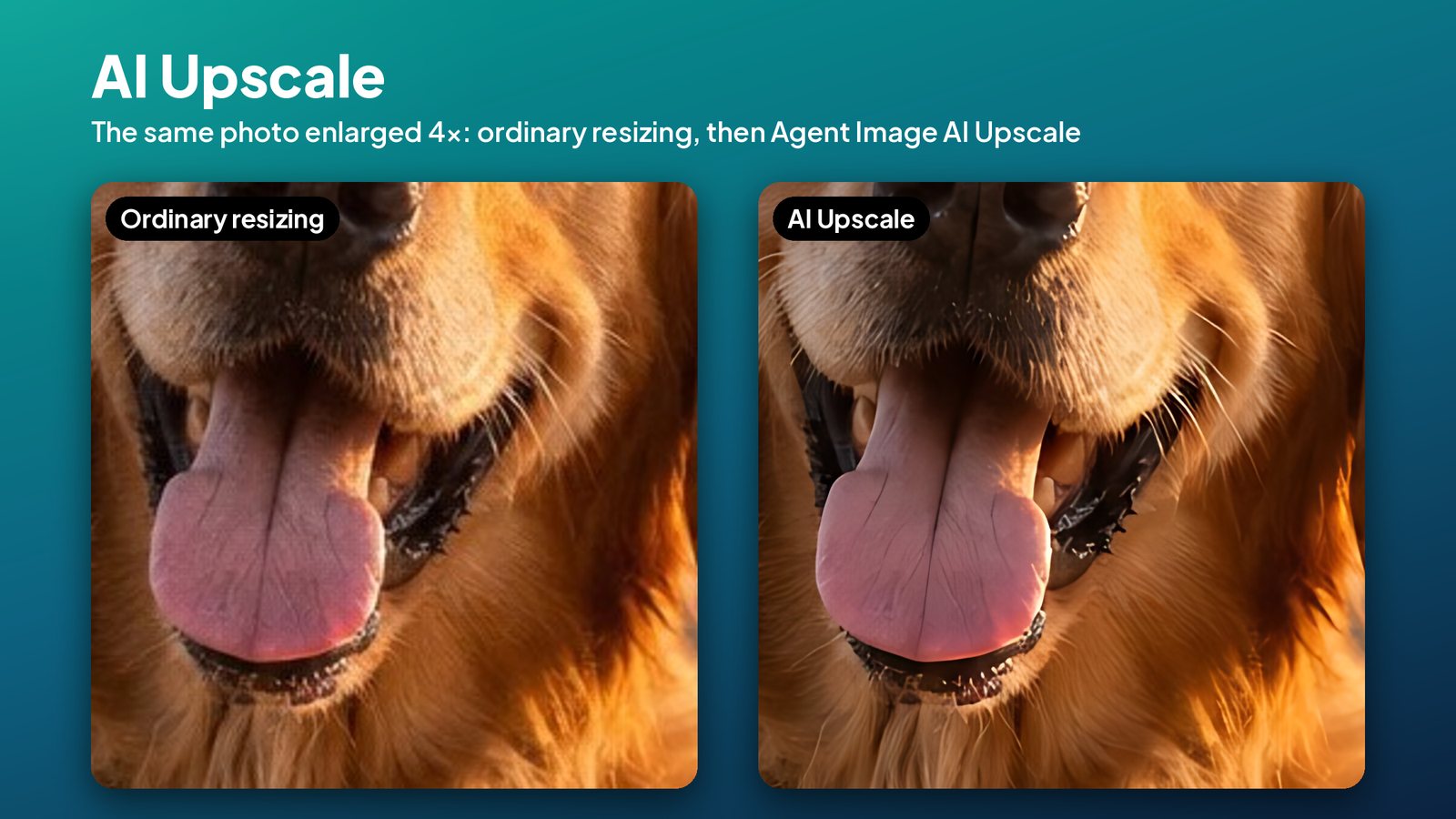
- Scale: 2×, 3×, 4×, 6× or 8×, a custom scale from 1.1× to 16×, or an exact width, height or longest edge in pixels.
- Output size: the exact size is shown before you export, for example “1024 × 1536 becomes 4096 × 6144 (25.2 MP)”. The maximum is 16,384 pixels on the longest edge, about 268 megapixels on Mac and 100 megapixels on iPhone and iPad. AI Upscale never makes a photo smaller.
- Batch: upscale any number of photos in one export.
- Combine: use it with background removal, Auto Enhance and noise reduction.
- Transparency: transparent images keep their transparency.
- Methods: AI Super Resolution (the default) adds new detail. Standard (Faster) uses ordinary resizing.
- Private: it runs on your device’s Neural Engine, works offline and never uploads your photos.
Where to find it
AI Tools › Upscale, in AI Studio (⇧⌘A on Mac, the More menu on iPhone and iPad), Batch Setup and the Export window.
Acknowledgements
AI Upscale uses the Real-ESRGAN model (realesr-general-x4v3), BSD 3-Clause licence, © 2021 Xintao Wang. The full licence is in the app under Help › AI Tools › Acknowledgements.
New in 1.1
Version 1.1 adds 14 new tools. Everything runs on your device, with no uploads.
- AI Upscale: enlarge photos 2× to 8×, any scale up to 16×, or to an exact size. See AI Upscale.
- Hide private details: find faces, number plates and text, then blur, pixelate or black them out. Check the preview, as small or partly hidden faces and plates can be missed.
- New backgrounds: after removing a background, use a blurred copy of the original or your own picture.
- Restore old photos: clean up dust and fine scratches and correct fading. It works best on scans of prints and doesn’t repaint large damage.
- Straighten documents: flatten photos of pages, receipts and whiteboards.
- AI keywords, captions and alt text: suggested on your device. Review and edit each one before it’s saved in the file.
- Adjust dates and times: shift a batch by days, hours, minutes and seconds, or set a new time zone. The order never changes.
- Geotag from a GPX track: each photo’s time is matched to the track, with a maximum gap and camera clock correction.
- Collages, contact sheets and carousels: grids, printable A4 or US Letter contact sheets, and 2 to 10 slides from one wide photo.
- Passport and ID photos: sizes for 9 countries and regions, with a 6 × 4 inch print sheet. Rules change, so check the current requirements. The issuing office decides whether a photo is accepted.
- Live Photo and video: make an animated GIF, a trimmed MP4 or QuickTime clip, or still frames.
- iPhone and iPad: scan documents, clean up your photo library, and convert from the Share sheet.
- Mac: watch folders that convert new images automatically, and Open in Agent Image from Finder.
- Shortcuts and Siri: actions for converting, upscaling, removing backgrounds, removing location and more.
Still need help?
Every message goes to Michael, the developer. Include your device, the iOS, iPadOS or macOS version, and the Agent Image version, plus the file format you were working with.
Email support